


Cast to TV - Screen Mirroring
4.5527.00 Reviews
App Specs
- Version
- 2.0.9
- Updated On
- License
- Free
- Downloads
- 1,000,000+
- Developer
- BoostVision
- Categories
- Video Players & Editors
- Platform
- Android
Screenshots
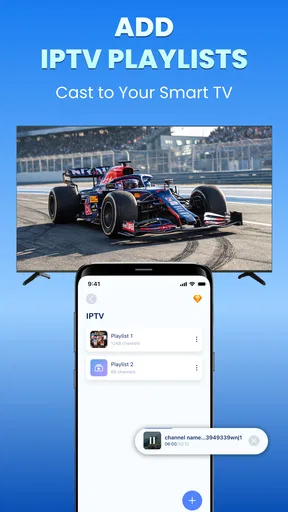
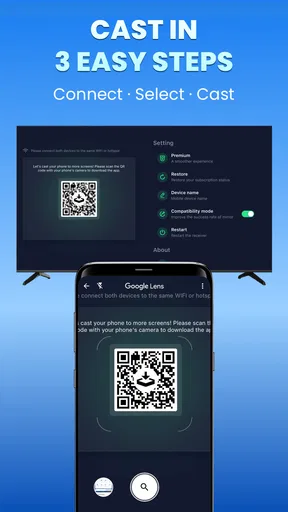
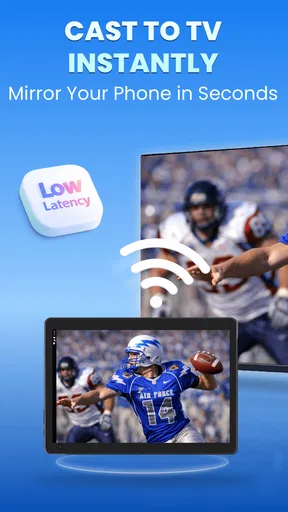
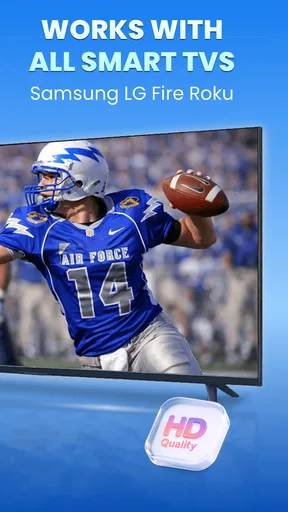
 Analysis by AppCompare
I often reach for a casting app when I want to share something on a bigger screen without passing my phone around. Cast to TV - Screen Mirroring is designed for that everyday job, and my overall impression is that it makes a useful bridge between a phone and a compatible television—provided the home network and the content itself cooperate.
What you get without paying upfront
The app is free to install, with optional in-app purchases priced from $3.99 to $25.99 per item. That makes it easy to try before deciding whether its casting tools suit your routine. I’d treat the free access as a chance to check that it can find your display and handle the kind of viewing you actually want, rather than assuming every feature is included at no cost.
BoostVision makes this video and screen-sharing app for Android, where it has an Everyone content rating. It has a 4.5 average from around 25,000 ratings and more than a million installs, which suggests it has reached a broad audience, though those numbers don’t guarantee it will work equally well with every TV or network.
Getting Started with Casting
First things first, downloading Cast to TV - Screen Mirroring is a cinch. You can find it on both the App Store and Google Play, so no worries if you’re team iOS or Android. Once installed, the app greets you with a clean and simple interface. No unnecessary bells and whistles, just straight to the point. I appreciate that because, honestly, who needs more clutter?
Interface and Usability
When you open the app, you’re prompted to connect to a device. The app scans for available TVs, and it picked up my smart TV almost instantly. The connection process was straightforward—just a tap, and I was ready to go. The app supports a variety of TV brands, so there’s a good chance your device is covered.
One thing I did notice is that the app recommends a strong Wi-Fi connection for optimal performance, which makes sense. A weak signal could lead to some lag or buffering issues, and nobody wants that when they're binging their favorite shows.
A small practical tip: I’d check that the phone and television are on the same home Wi-Fi before troubleshooting the app itself. If the TV doesn’t appear, I’d also wake it fully and reopen the device scan; a sleeping display or a network handoff can make discovery feel inconsistent. That’s a sensible first check, not a guarantee of compatibility.
Worth Reading Before You Choose

Baby Panda World Brings Quick Play to Modern Phones, but Its Game Library Feels Busy

ESPN’s Live Game View Makes Following Close Games Easier

QuizzLand Review: A Good Fit for Short Trivia Breaks, Not Every Player

Basketball Stars: Multiplayer Is Fast, but Can It Recover When Matches Go Wrong?

WEBTOON Turns Phone Updates Into a Better Reading Routine

Link to Windows Runs on Shared Habits, Not Social Feeds
For a shared living room, it’s worth choosing the destination before handing someone your phone to browse. That reduces the chance of a personal notification or unrelated screen appearing in front of everyone. Mirroring reflects the phone’s display, so it’s better suited to content you’re comfortable showing than to private tasks you’d rather keep on the handset.
Performance and Features
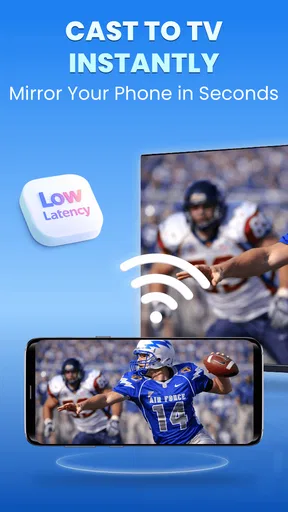
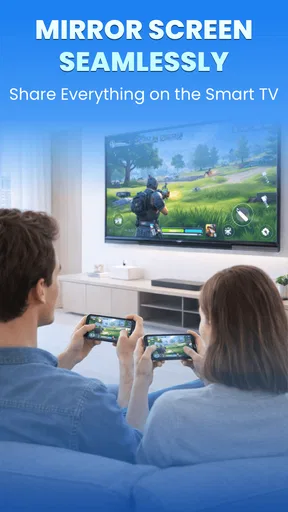
Now, let’s talk performance. Once connected, screen mirroring was surprisingly smooth. Whether I was streaming a video or just showing off some vacation photos, the quality was top-notch with minimal lag. It’s like having a giant version of your phone screen right there in your living room.
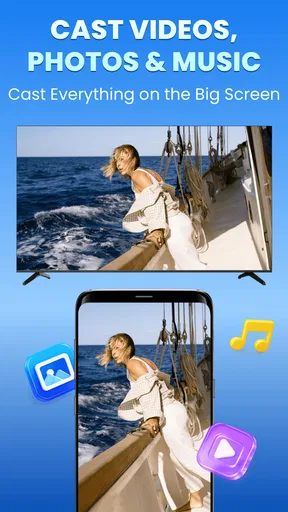
The app also supports casting videos from various platforms. I tried it with YouTube and Netflix, and it worked like a charm. The video quality was crisp and clear, making movie nights way more enjoyable. Plus, the audio sync was spot on, which is crucial when you’re trying to enjoy a good film or show.
The distinction between mirroring and sending a video to a TV matters in everyday use. Mirroring is handy when I want to show a photo album, a page, or something already open on my phone; it also means the phone remains part of the setup. If I’m settling in for a long watch, a TV’s own app or a direct cast option is often the better route because I can leave the handset free rather than keeping its screen involved.
For a realistic quick-share scenario, imagine a relative asking to see a few holiday pictures after dinner. I’d connect to the TV, open the album, and swipe through together instead of gathering around one small display. For a work or school presentation, the same approach can be convenient, but I’d test the connection and open the right material before people arrive; finding the TV and sorting out Wi-Fi in front of a room can be an awkward start.
There is also a useful trade-off in choosing a big screen for casual viewing: the phone’s orientation and what is visible on it become part of the experience. I’d rotate the handset before starting a landscape video and close unrelated apps first. That simple preparation can make a mirrored session feel intentional rather than like a phone interface enlarged by accident.
As a video-player and editor category app, this is more about getting content onto another screen than editing a clip or organizing a media library. If your main aim is trimming footage, adding effects, or managing a collection, a dedicated editor or the TV’s native media tools would make more sense. Its appeal is the short path from something on the phone to a shared display.
Compatibility and Limitations
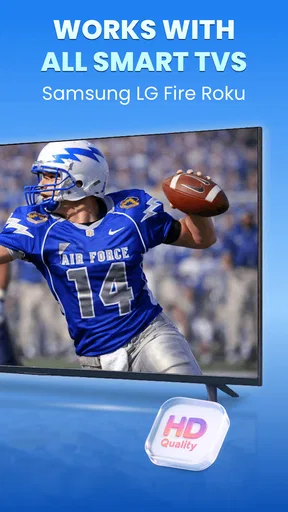
While Cast to TV - Screen Mirroring works well with most smart TVs, it might not be compatible with older models. If your TV doesn’t support casting, you might need a Chromecast or similar device to bridge the gap. It's a small price to pay for the convenience of wireless streaming, but something to keep in mind if you’re dealing with legacy tech.
Another limitation is the lack of support for DRM-protected content from platforms like Hulu or Disney+. This isn’t entirely the app’s fault—DRM restrictions can be a bit of a pain for any casting app.
That limitation is a good reason to test your actual viewing habits rather than judging the app by a successful photo share. Protected streaming can behave differently from personal videos or web content, and a cast that works for one source doesn’t prove that another will. When a subscription service is the main reason you want a larger picture, I’d first try its built-in TV app or the service’s supported casting method.
Network quality is another practical boundary. A busy or weak Wi-Fi connection can make video stutter, introduce delay, or interrupt discovery, even when the TV itself is compatible. If that happens, I’d move closer to the router or reduce other network activity before deciding the app is at fault. If reliable playback is essential and wireless conditions are poor, a wired connection or a dedicated streaming device may be the less frustrating choice.
There’s also a difference between a television appearing in a scan and being a dependable match for every task. Compatibility can vary by model and by what you’re trying to show. I wouldn’t buy a new device solely on the assumption that this app will solve every connection problem; check that the TV or streaming accessory supports the kind of casting you need first.
Who is likely to get value
I’d recommend trying it if you often show phone photos, short clips, or other suitable content to people in the same room and your TV already supports casting. It can save the small hassle of finding a cable or crowding everyone around a handset. It is especially appealing when the need is occasional: install it, connect when there’s something worth sharing, and use the television you already own.
I’d be more cautious if your routine is mostly watching protected subscription services, if you need a rock-solid presentation setup, or if your television is older and lacks casting support. In those cases, a native TV app, an established streaming device, or a cable can be a better fit. Those options may avoid relying on phone mirroring, though the right choice depends on the equipment you already have.
The app runs on Android 7.0 or later, and the current version is 2.0.4. If you’re deciding whether to install it on a particular phone, checking the operating-system requirement is a straightforward first step. Since this is an Android app, iPhone users should verify availability and compatibility on their own platform rather than assuming the Android release details apply to iOS.
For a household with several people, I’d also think about how often the TV will be used and by whom. A quick screen share can be simpler than explaining a new device to a guest, but frequent viewers may prefer a dedicated remote-controlled streaming setup that doesn’t depend on someone’s phone. The convenience here is strongest when the phone is already the natural place to find the content.
Final Thoughts
Overall, I’d say Cast to TV - Screen Mirroring does an excellent job at what it sets out to do. It’s easy to set up, user-friendly, and the mirroring quality is impressive. Sure, there are a few limitations, but for the most part, it’s a solid option for anyone looking to enhance their home entertainment setup.
If you’re tired of squinting at your small screen and want to bring your content to the big screen with minimal fuss, this app is definitely worth a try. Just make sure your Wi-Fi is up to the task, and you’re all set for a seamless casting experience.
So, grab some popcorn, kick back, and enjoy your favorite content on the big screen like never before. Happy casting!
My buying advice is simple: start with the free access and see whether your television, phone, and usual content work together before considering an optional purchase. I wouldn’t pay just because the app can find a screen; I’d look for a clear benefit in the features I personally use. The paid value depends on what those purchases unlock for you, so the sensible choice is to judge it against your own casting routine rather than treating an upgrade as necessary.
In short, I see it as a convenient extra for casual sharing, not a universal replacement for a smart TV’s built-in apps or a dedicated streaming device. If your goal is to put suitable phone content in front of a room with little setup, it’s worth a try. If protected shows, guaranteed compatibility, or uninterrupted viewing are the priority, I’d choose the more direct option for that job.
Pros
- Easy setup process for beginners.
- Supports multiple device connections.
- High-quality video resolution.
- Compatible with most smart TVs.
- User-friendly interface design.
Cons
- Occasional lag during streaming.
- Ads can be intrusive at times.
- Limited features in free version.
- Requires stable internet connection.
- Some devices may not be supported.
FAQs for Cast to TV - Screen Mirroring
What is Cast to TV - Screen Mirroring and how does it work?
Cast to TV - Screen Mirroring is an app that allows users to stream content from their mobile devices to their TVs wirelessly. It connects via Wi-Fi, enabling you to mirror videos, photos, and even games directly onto a larger screen. The app supports various TV models and streaming devices, making it versatile and user-friendly.
Is Cast to TV - Screen Mirroring compatible with all TVs?
While Cast to TV - Screen Mirroring is compatible with many smart TVs and streaming devices, it's important to check if your specific TV model is supported. Generally, it works well with Chromecast, Roku, and DLNA-enabled devices. For optimal performance, ensure both your TV and mobile device are on the same Wi-Fi network.
Does using Cast to TV - Screen Mirroring require an internet connection?
Yes, Cast to TV - Screen Mirroring requires a stable Wi-Fi connection to function properly. Both your mobile device and TV need to be connected to the same network. The app does not use mobile data, but a strong Wi-Fi connection ensures smooth streaming without interruptions or lag.
Are there any security concerns with using Cast to TV - Screen Mirroring?
Security is always a concern with screen mirroring apps. Cast to TV - Screen Mirroring uses secure protocols to ensure data is transmitted safely over your network. However, it's crucial to use a secure Wi-Fi connection and keep your app updated to protect against potential vulnerabilities.
Is there a cost associated with using Cast to TV - Screen Mirroring?
Cast to TV - Screen Mirroring offers both free and premium versions. The free version includes basic features and might contain ads. The premium version, available through in-app purchases, provides an ad-free experience and access to additional features. Review the app's pricing details to determine which version best suits your needs.


